
Launch price, 50% off until 31 December 2026
Saldae Tracker, the time tracker that tells you about your day
Press Start. Every 10 minutes go into your Work Diary with a screenshot, your activity and the apps you used. You choose the project now or later.
Who it is for
Freelancers and independents
Developer, designer, writer or translator, each client's time is counted while you work. You see the week as earnings at your hourly rate, with a timesheet to send.
Students and anyone who wants to focus
The software shows you your longest focus, your most active hour and the time that went to social media. You see where your time goes without writing anything down.
Personal edition
10 000 DA once, for life
instead of 20 000 DA
- A full 14-day trial, nothing to pay
- A licence for one computer, for life
- macOS or Windows
- One year of updates
- Support on WhatsApp
- Your data on your computer, in the folder you choose
For a team, installed on your own server
The Business edition installs on your employees' computers and sends their diary to a server installed on your local server or infrastructure. Your team's time and screenshots stay with you.
One edition for yourself, one for the team

Personal or Business
| Feature | Personal edition | Business edition |
|---|---|---|
| Timer, 10-minute Work Diary, screenshots | ||
| Productivity, deep work, switches between apps | ||
| Timesheet and earnings | ||
| Each employee's day, with their screenshots | ||
| Your rules for every computer, and what is productive set per team | ||
| Add and revoke employees | ||
| Teams, and a key per manager with their role | ||
| An access log | ||
| Email alerts and the state of each computer | ||
| Where the data is | Your computer | Your company's server |
| Price, once | 10 000 DA | 50 000 DA server and 4 computers |
What Saldae Tracker does
Your day, told
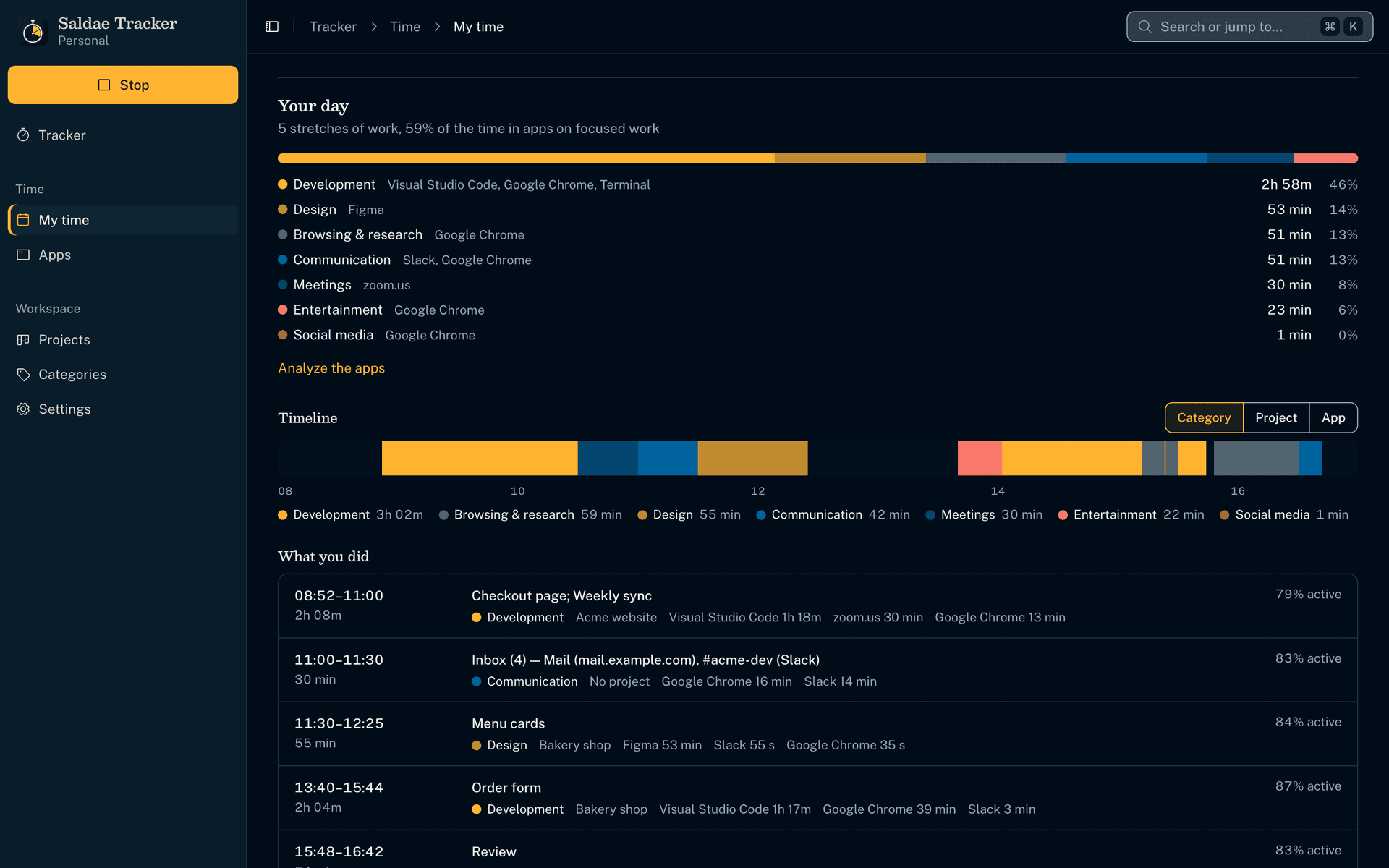
- The tracker works out on your computer your hours and breaks, your longest focus, your most active hour, your distractions and how the day compares with a typical one.
- Every app and browser tab falls into a category (development, design, meetings, entertainment…) by its name, its site or its title.
- You see the share of each category, with a link to analyze the apps.
Productive or not, and why
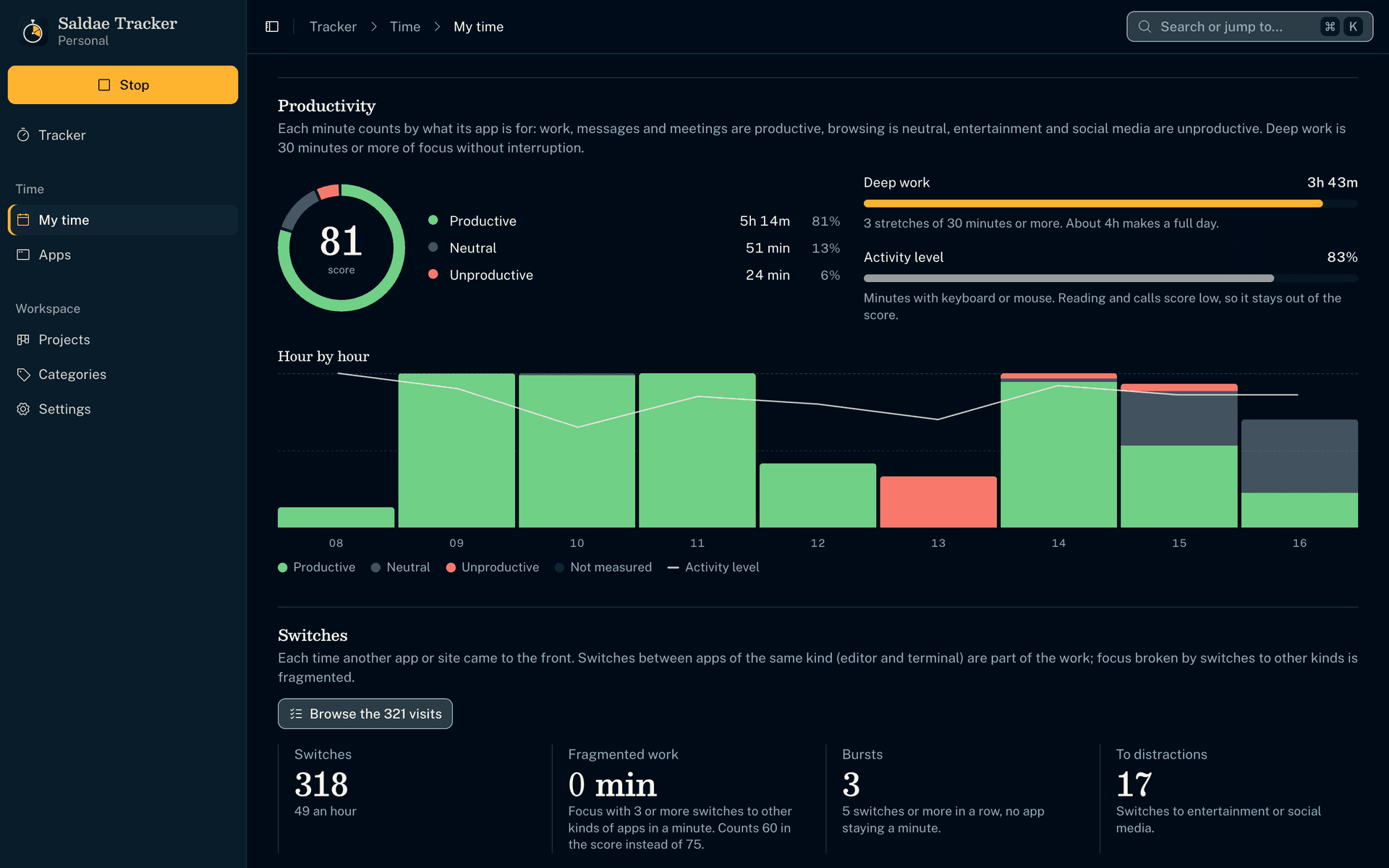
- Each minute counts by what its app is for: work, messages and meetings are productive, browsing is neutral, entertainment and social media are unproductive.
- Deep work is 30 minutes or more of focus without interruption. It weighs the most in a score out of 100.
- Reading or a call without keyboard or mouse never counts as unproductive.
Every switch between apps, to browse
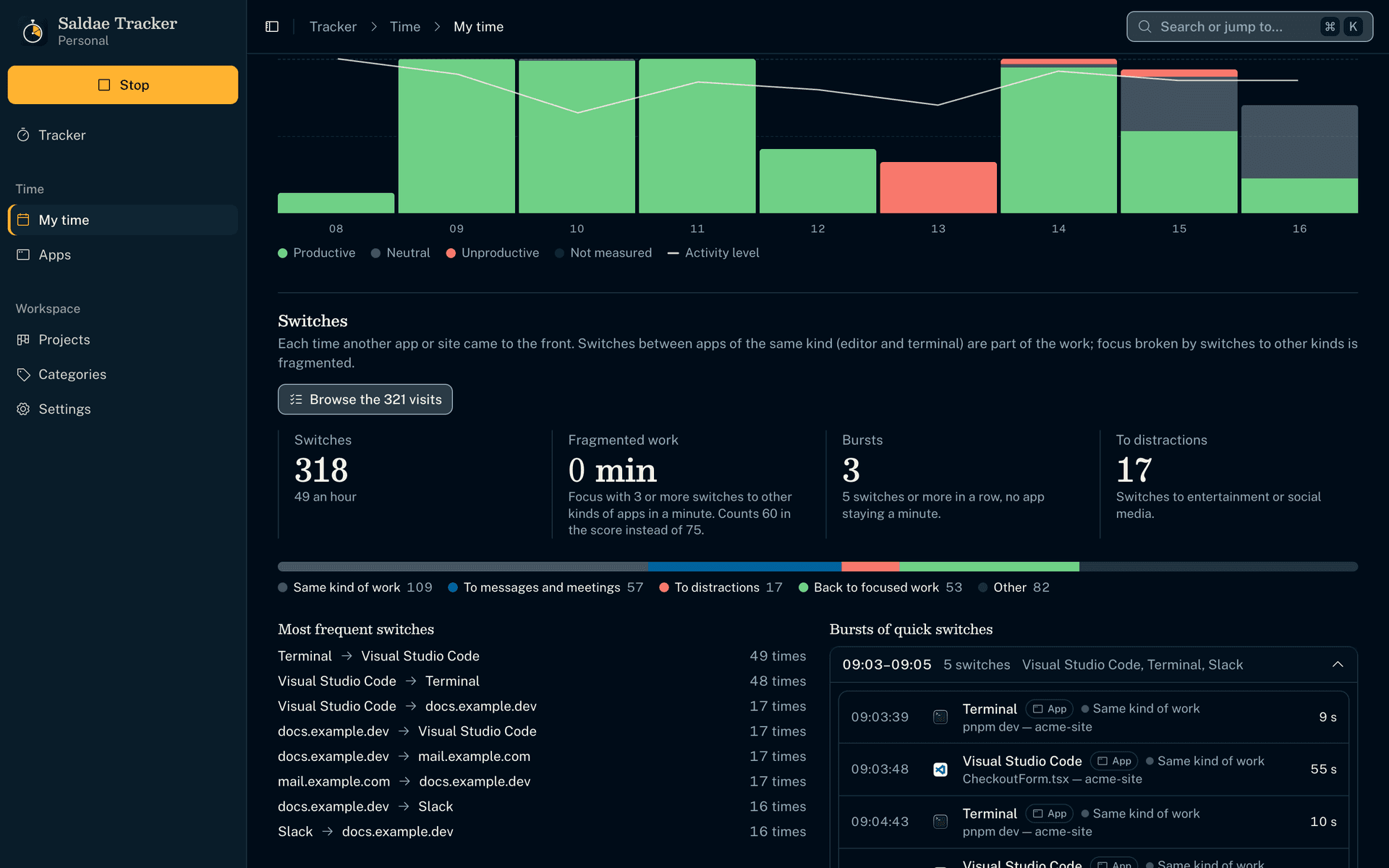
- The software notes, in order, each app and site that came to the front, and how long it stayed.
- You see your most frequent switches (the editor to WhatsApp, for example) and the bursts where attention scatters.
- Going from the editor to the terminal is still work. Focus cut again and again by other apps counts less in the score.
What you did, without writing it down
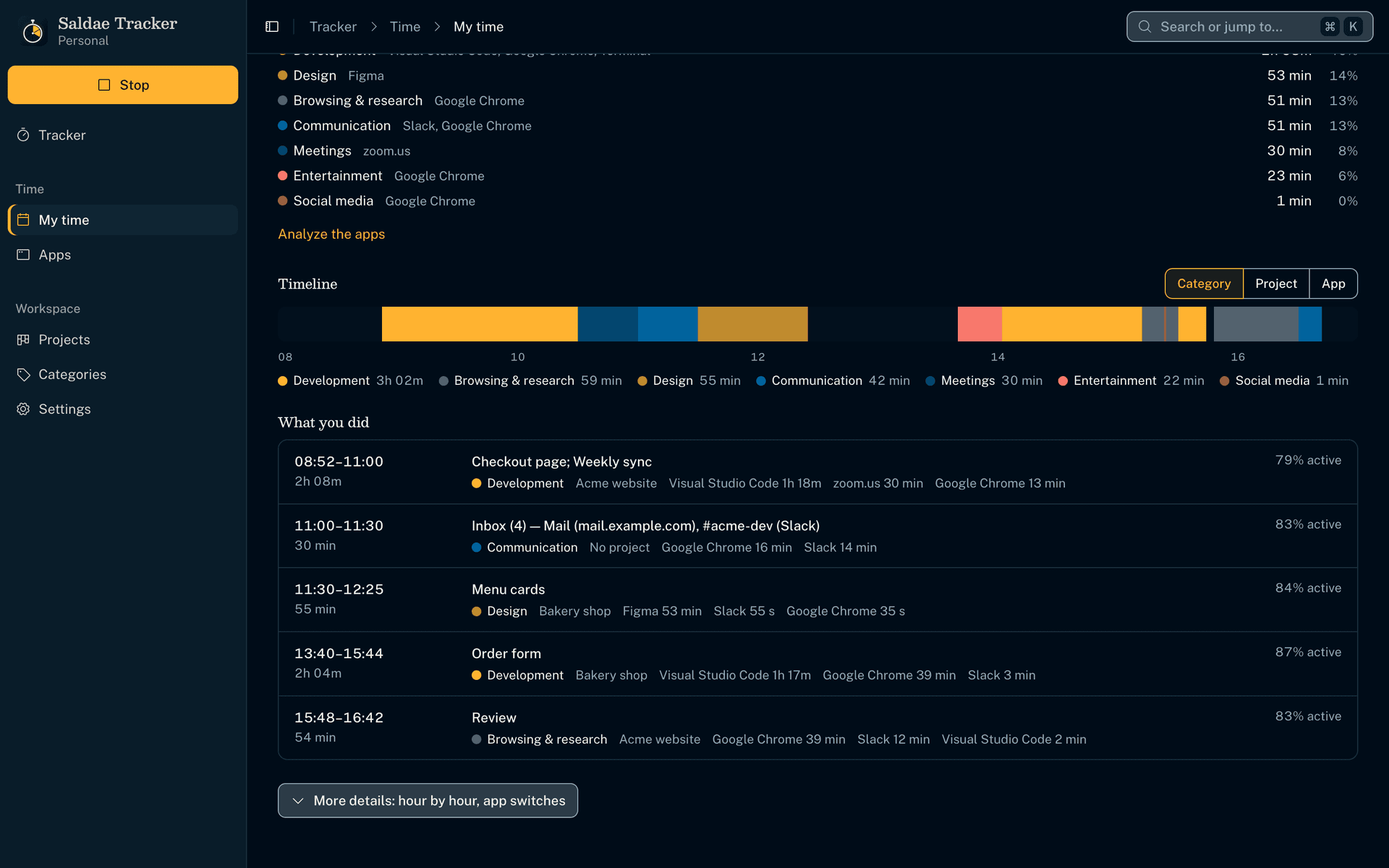
- A timeline shows your day, coloured by category, project or app. The gaps are your breaks.
- Your stretches of work (one project, no five-minute break) are told by your memo, or by the windows and sites you were using.
- Each stretch shows its apps and how active you were. A click opens its screenshots.
A Work Diary of 10-minute slots
- My time opens on your day: each slot holds one screenshot taken at a random moment, your memo and ten activity bars. The day’s analysis is in the next tab.
- Each bar is a minute, as tall as your use of the keyboard or mouse. The tracker reads the system’s idle time every 5 seconds and never records keystrokes.
- Idle time is set aside for you to keep or discard. Nothing counts while the computer sleeps or is locked, and manual time goes only where nothing was tracked.
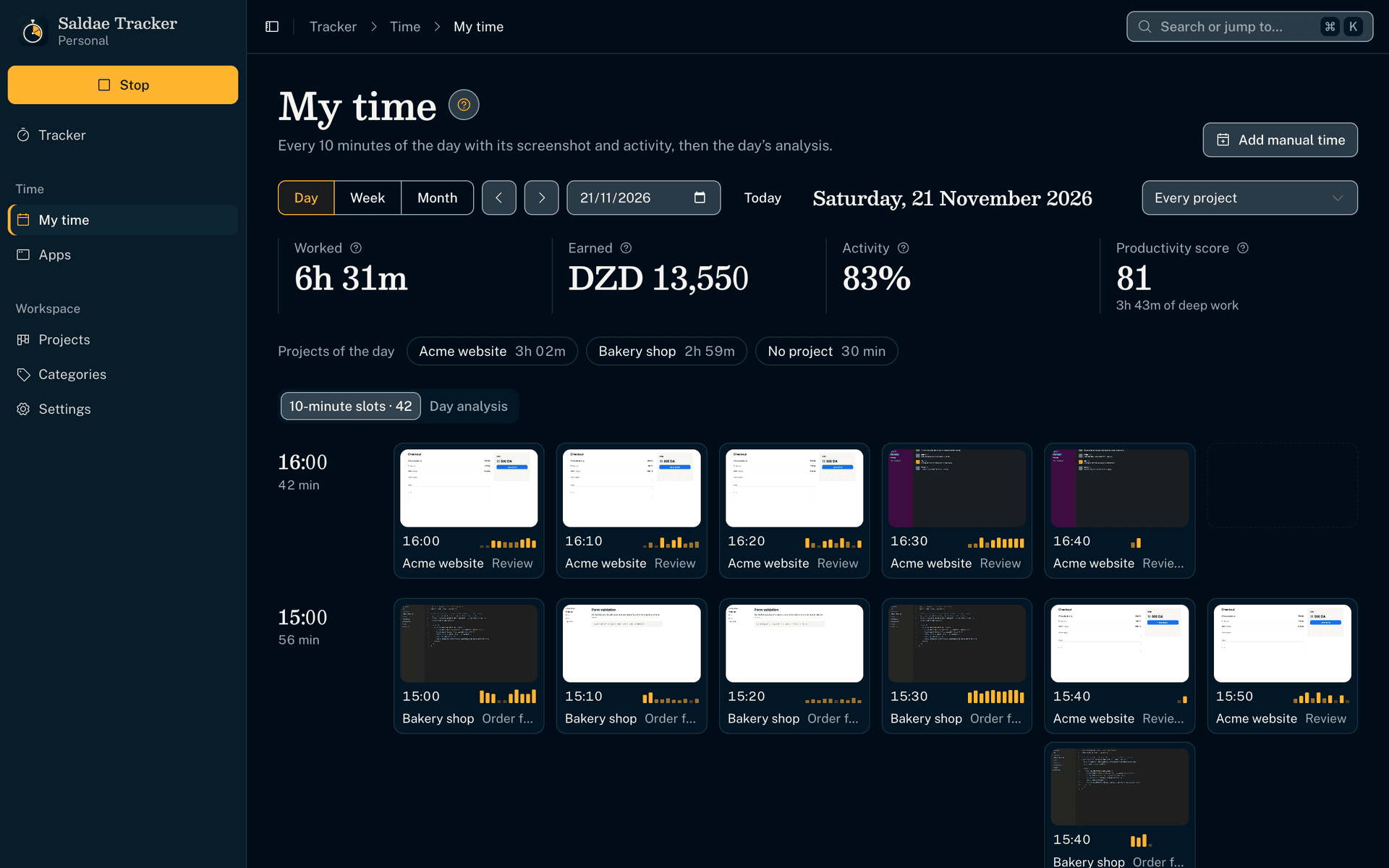
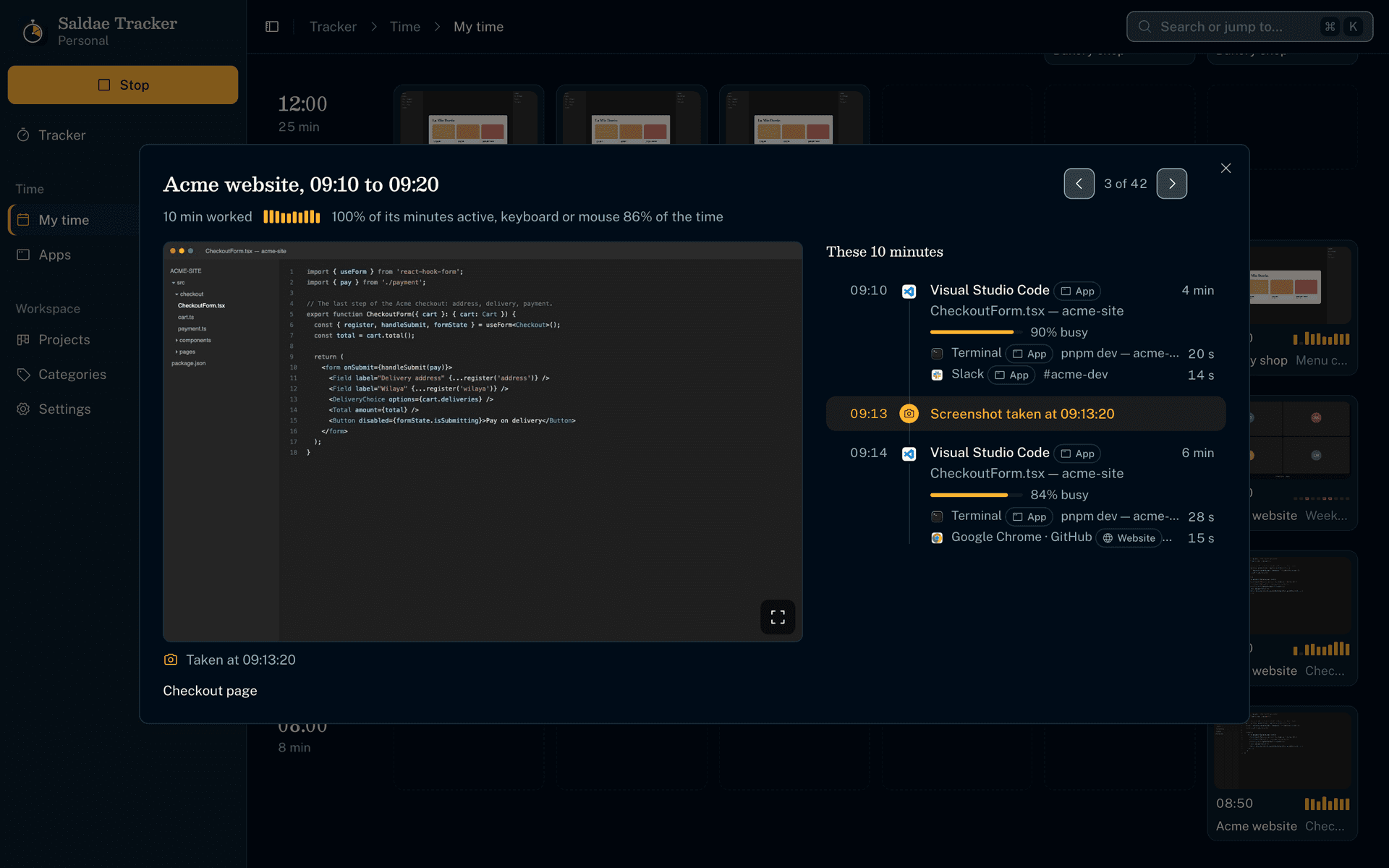
A slot, opened
- The screenshot shows in full beside the ten minutes, in order. Each stretch shows its app, its window and how busy you were, and the moment of the screenshot sits among them.
- You choose screenshots on, blurred beyond reading, or off.
- You assign a slot to a project, give it a memo, or delete it with its screenshot.
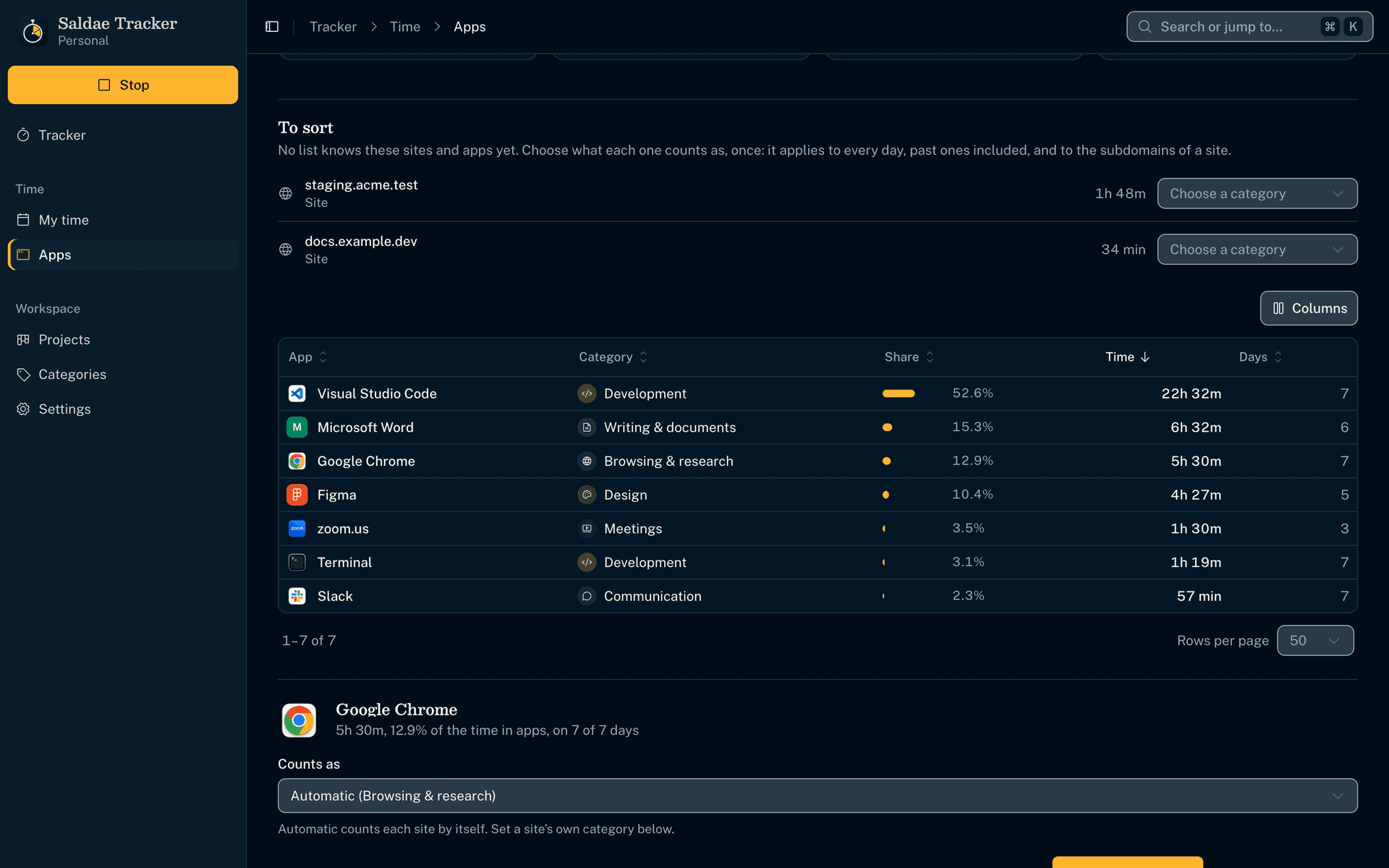
Where your time went, app by app
- You see a day, a week or a month app by app, each with its icon, share, days used and category, and you filter by project. The report exports as CSV.
- Each category's tile names where its time went, such as TikTok and Instagram for social media. A click on a tile shows only its apps.
- Apps are tracked on macOS and Windows.
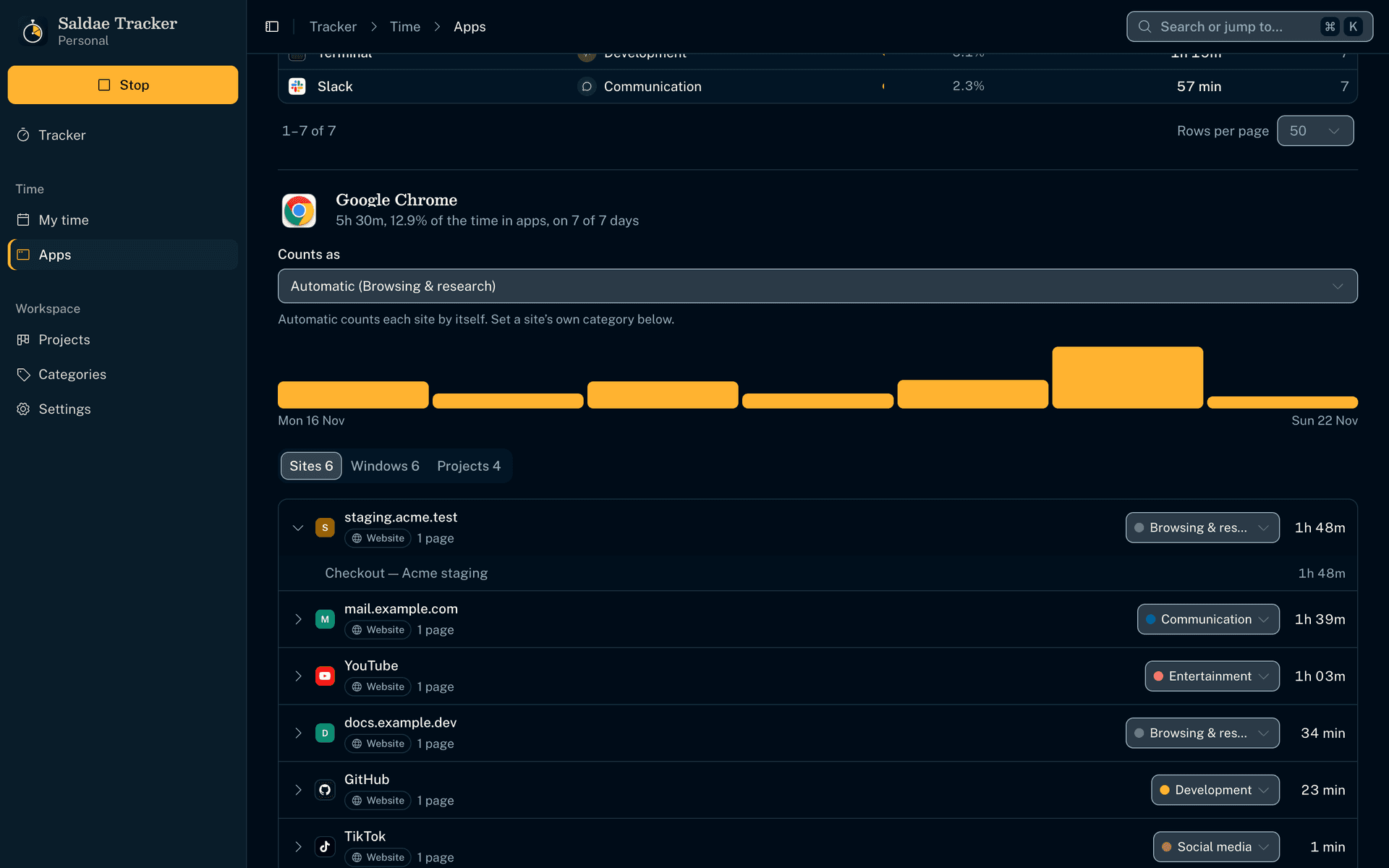
Sites, windows, and what they count as
- A browser's time is grouped by site or service, recognized from the tab's address or title, and each one opens on its pages. Brand icons are included, so no site you visited is ever contacted.
- You correct what an app or a site counts as, and every day follows, past ones included.
- You see each window and project the app served, with its time.
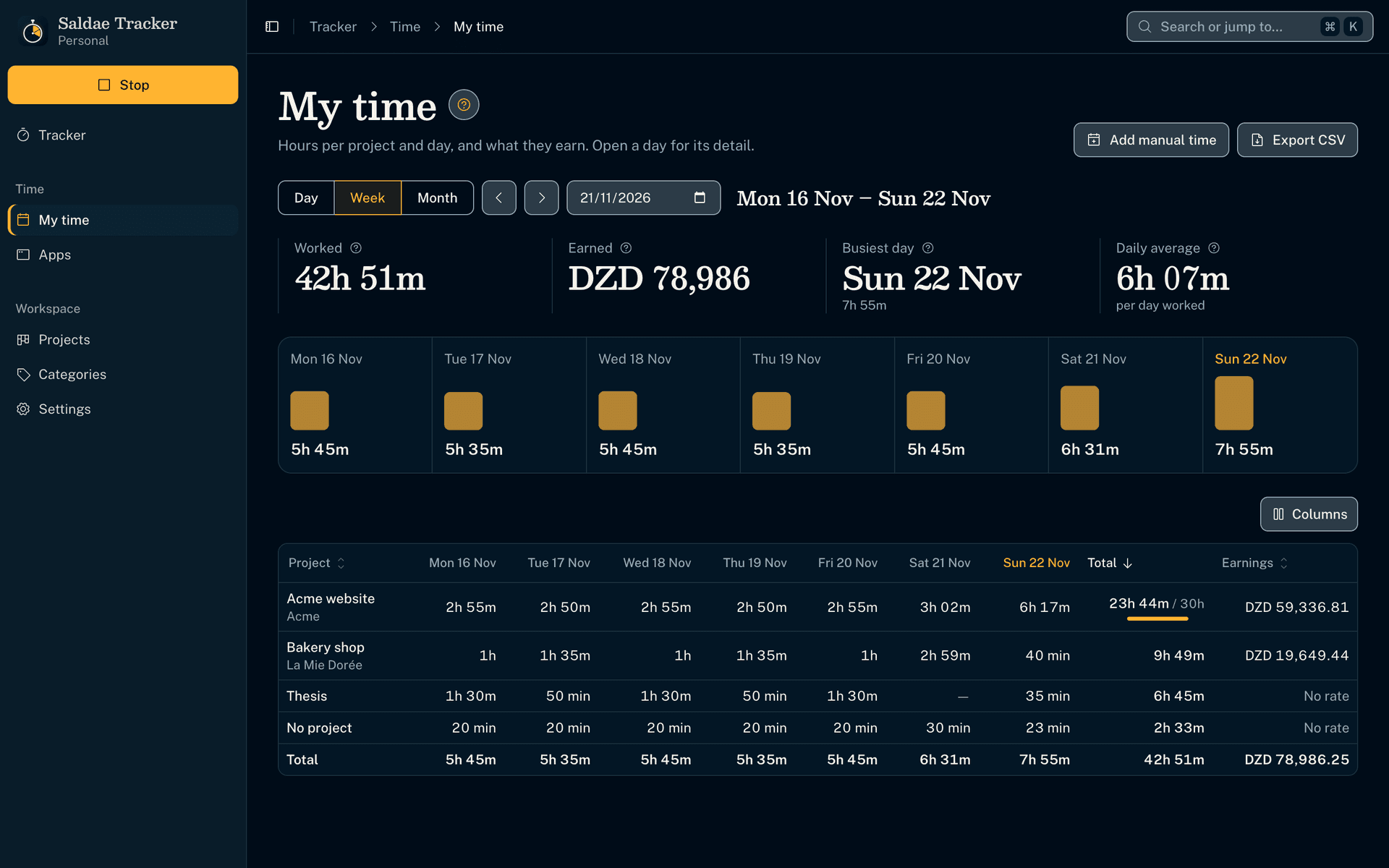
A Timesheet that earns
- You see the week's hours per project and day, with each day's total. Each project's hourly rate turns into earnings, with one total per currency.
- Click a day to open its screenshots. Time without a project has its own row until you assign it.
- You export it as a CSV for a client or an accountant.
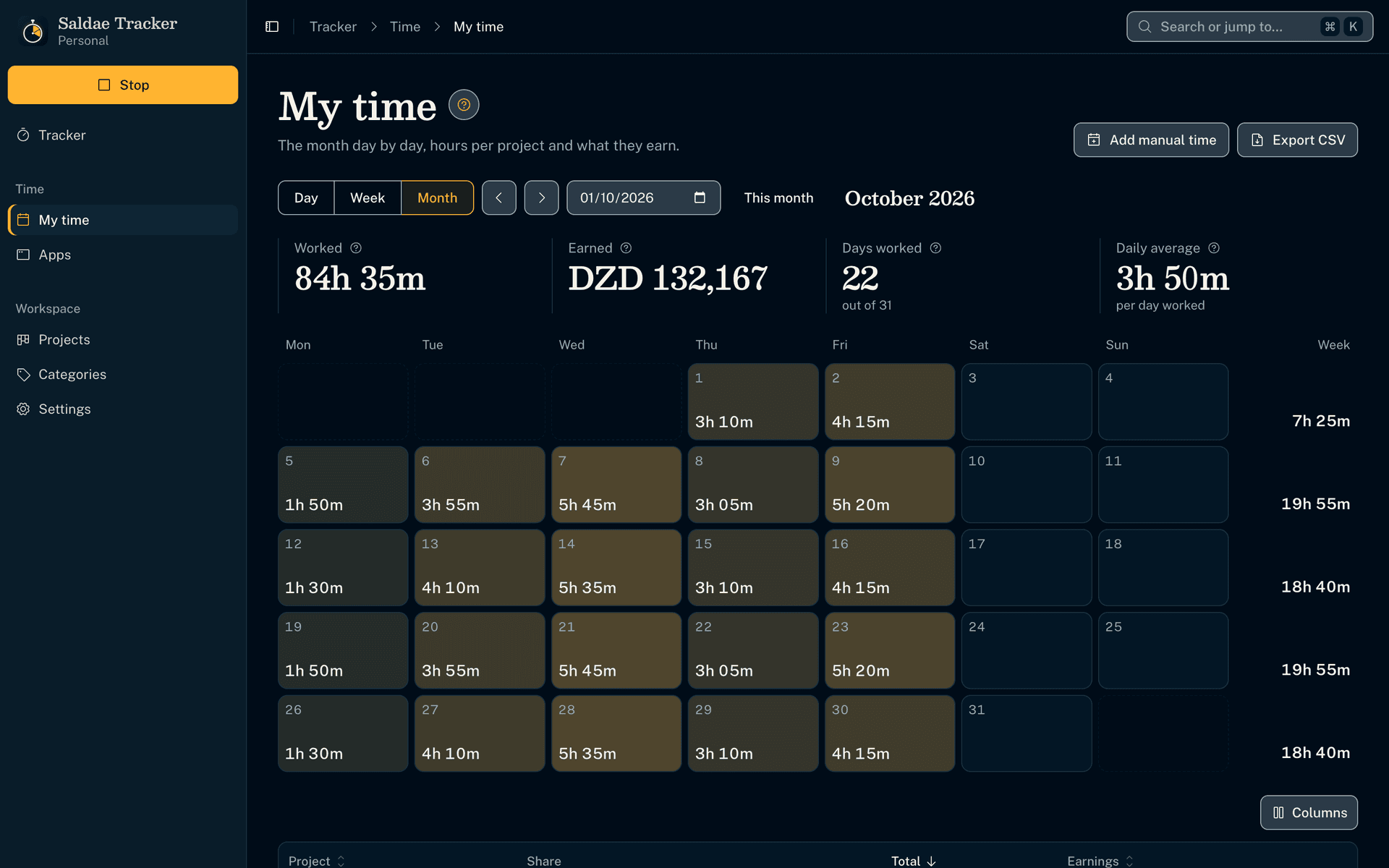
Your month at a glance
- Each day of the month shows your hours, brighter the more you worked, with each week's total.
- Click a day to open its screenshots, or a week to open its hours per project.
- Below, each project's hours, share and earnings for the month, to export as CSV.
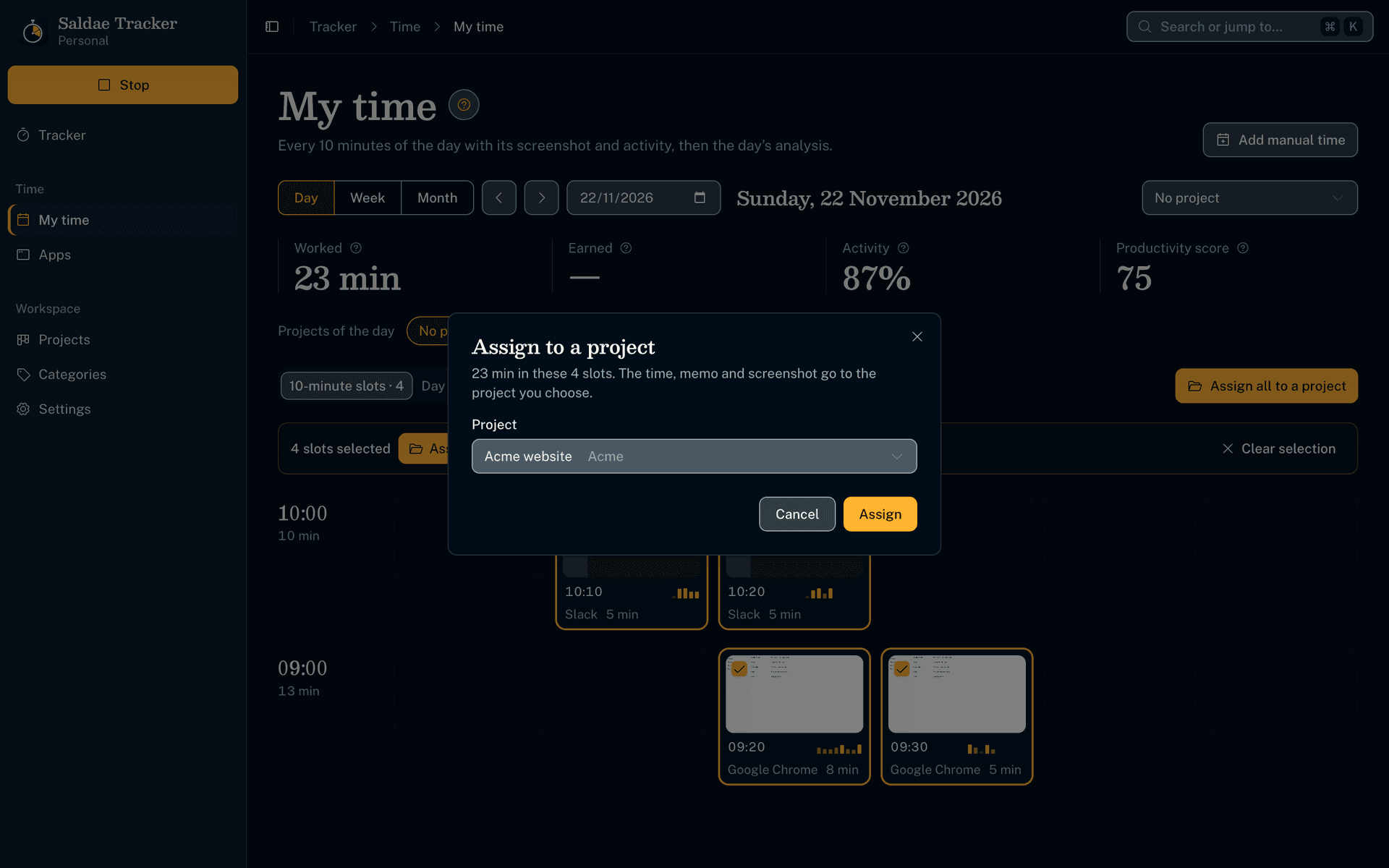
Assign the time afterwards
- The No project filter gathers the day's unassigned time. Assign all gives it a project in two clicks.
- A slot takes its minutes, memo and screenshot to the project you choose, for the same ten minutes.
- You can create a project on the spot from every project list.
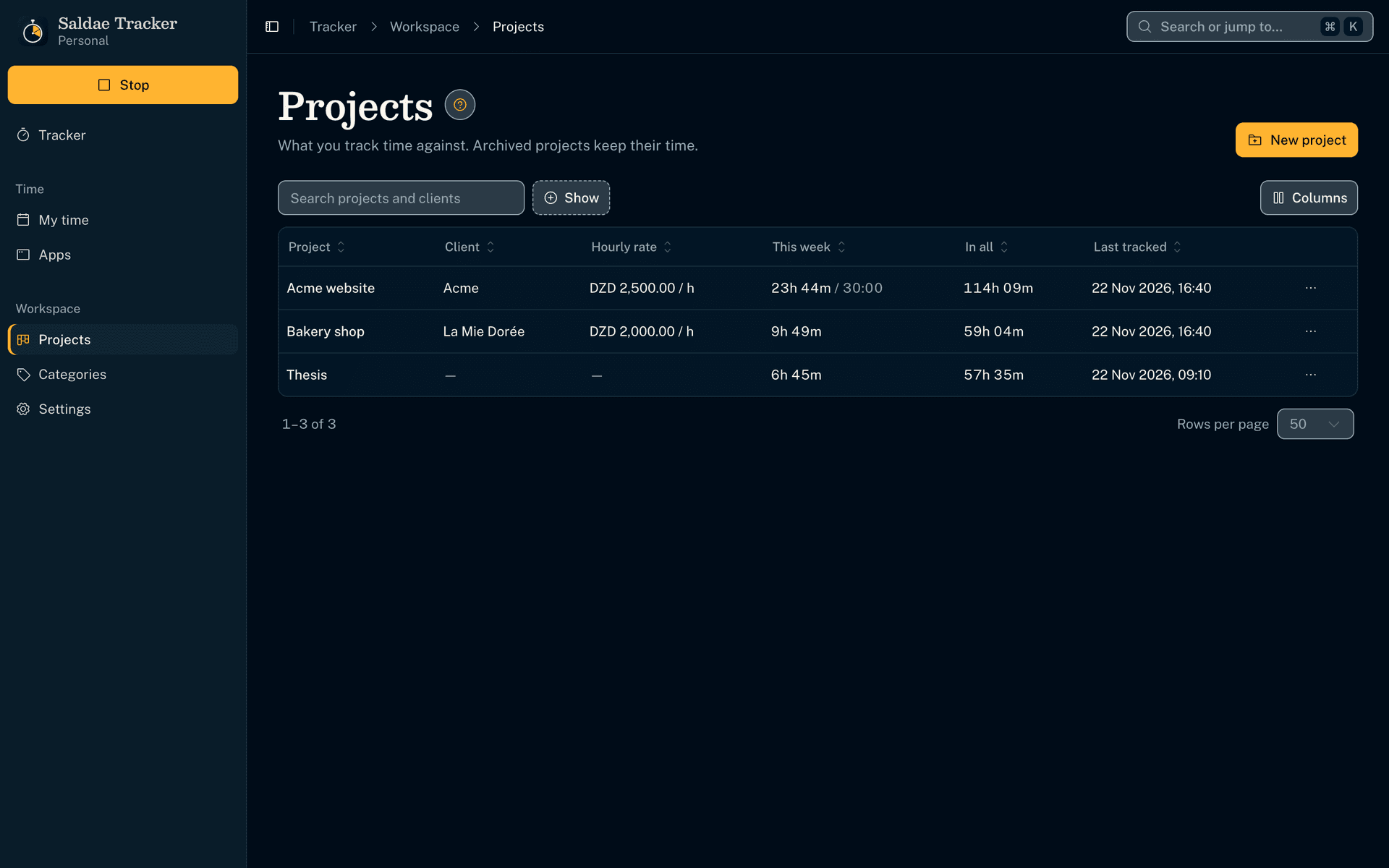
Projects, optional
- Each project has its client, hourly rate and an optional weekly limit, which stops the timer when reached.
- Archived projects keep their time out of the way.
You choose what is recorded
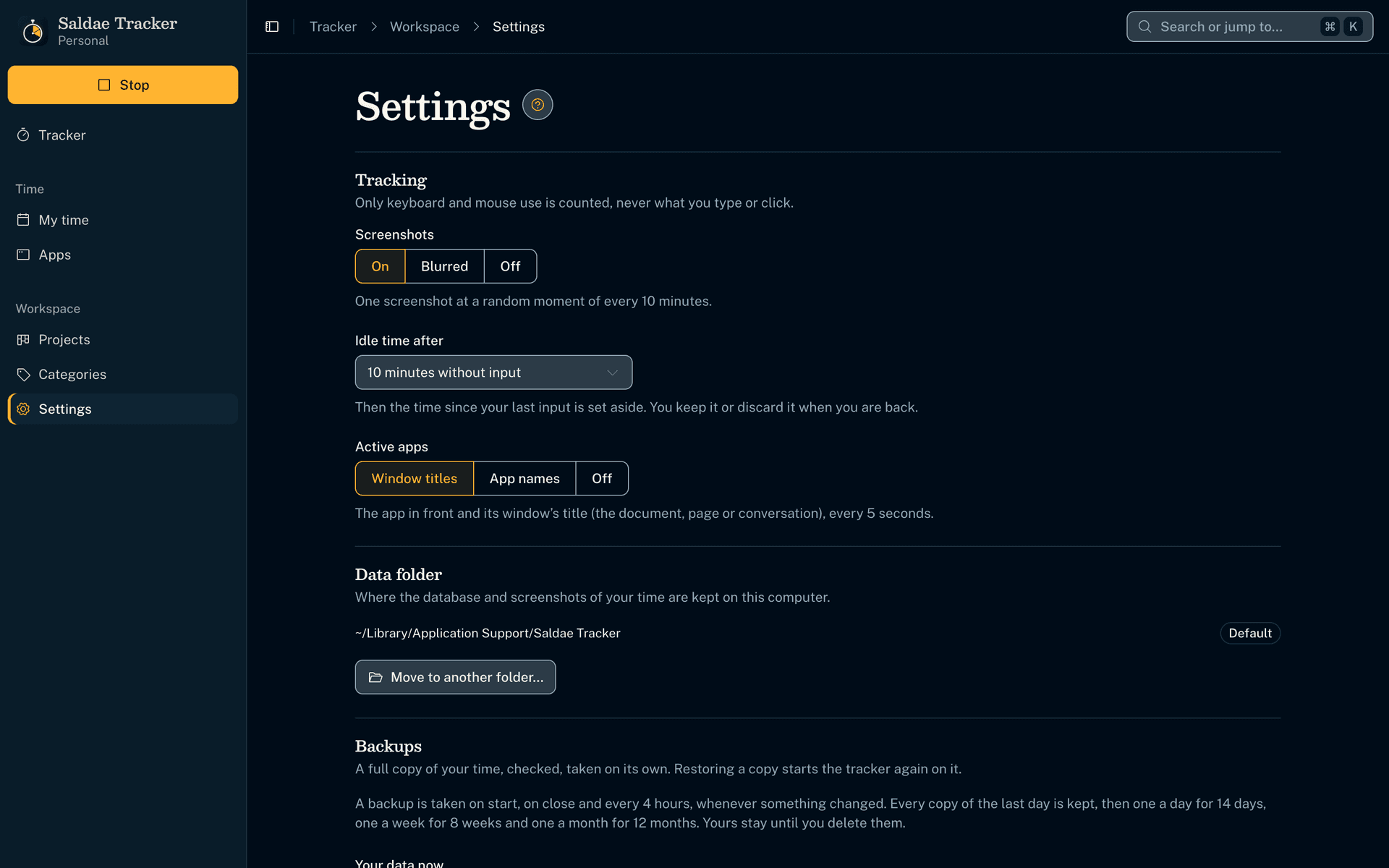
- You choose screenshots on, blurred or off, idle time after the delay you pick, and the app in front with its window title, its name only, or nothing.
- macOS permissions are asked in the first-run setup or from Settings, never by surprise.
Your data where you want it, and an MCP server
- You move the data folder anywhere (another drive, a synced folder). The tracker restarts on the copy and deletes the old one only once the new one has opened.
- Saldae Tracker has an MCP server, the protocol that lets an AI assistant use a piece of software. Its 37 tools cover every action on the screens, so Claude, Cursor, Codex or OpenCode can start the timer, read your day and assign time.
A first-run setup that asks once
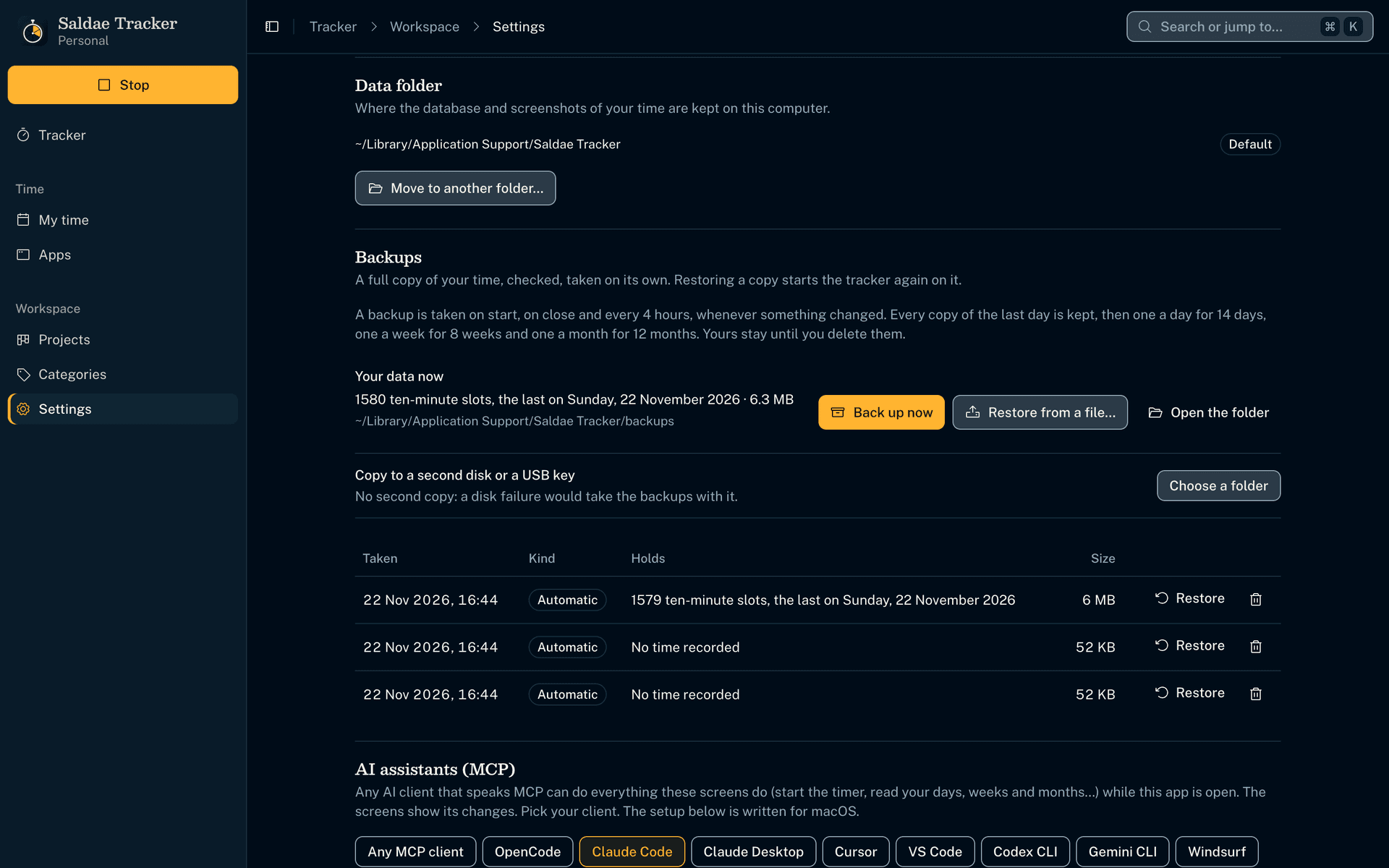
- Five illustrated steps explain what the tracker records, then ask for the macOS Screen Recording and Accessibility permissions. Each one shows its state as it changes.
- Each drawing follows your choices, such as blurred screenshots or app names only.
- The last steps set the tracker to open with your computer and start the timer.
A guide on every screen
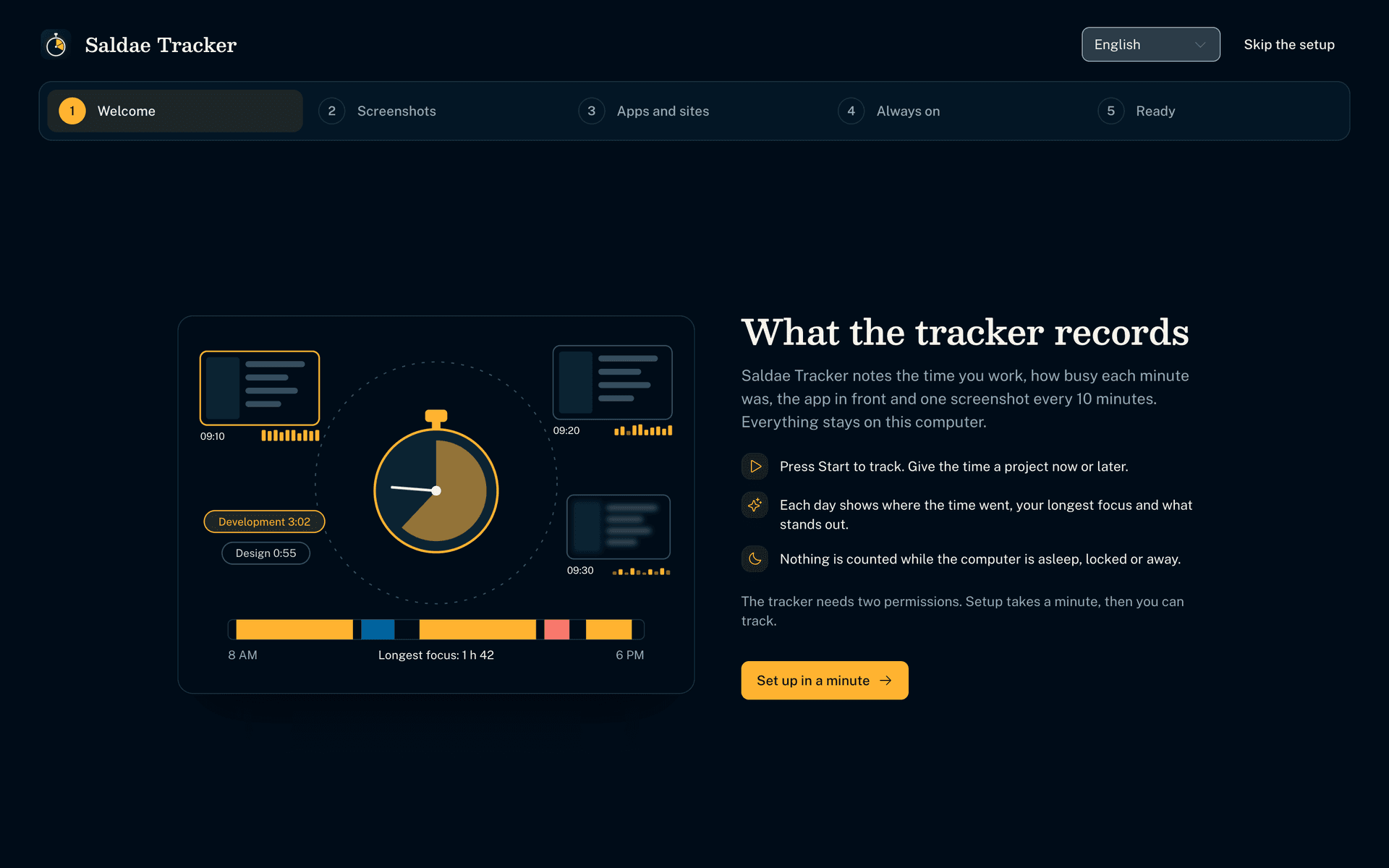
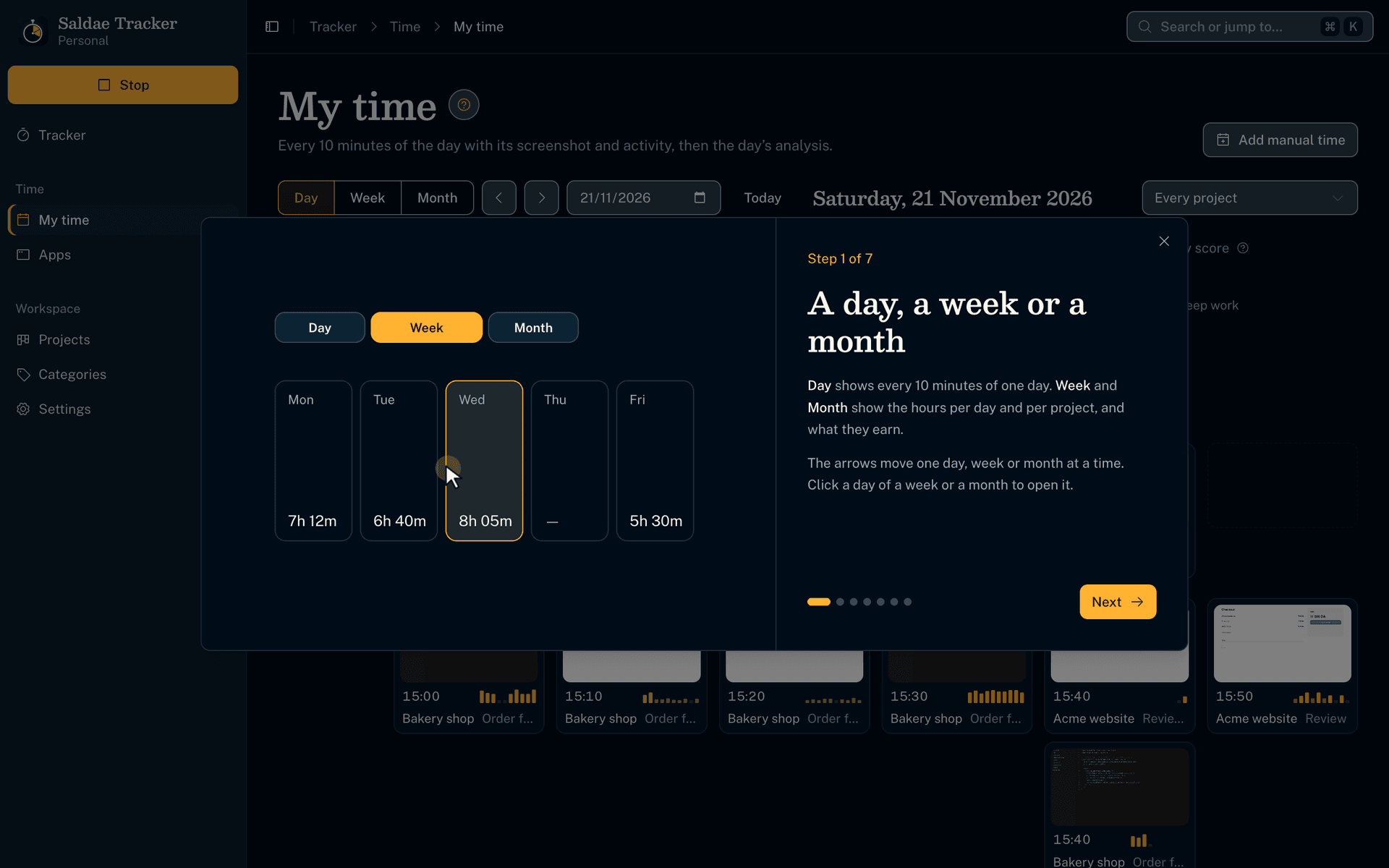
- Each screen has an illustrated "?" walkthrough.
- Empty screens draw what will appear there.
Every feature
Timer
- Start in one click, no project or setup first
- A project chosen during the session takes the time already tracked, or starts from now on
- A memo of what you do, kept with the time
- S to start or stop, from any screen
- The timer in the menu bar, with the window closed
- A weekly limit per project that stops the timer
Work Diary
- Every 10 minutes with a screenshot taken at random
- Ten activity bars, one per minute, as tall as its time on keyboard or mouse
- Never keystrokes, never what is typed
- Idle time set aside, to keep or discard when you are back
- Manual time for calls and meetings
- Assign, describe or delete slots in bulk
Your day
- Hours, start, end and breaks
- Your longest focus and most active hour
- The time on social media and entertainment
- How the day compares with a typical one
- A timeline coloured by category, project or app
- What you did, told by your memos or your windows
Productivity
- Productive, neutral and unproductive time, by what each app is for
- Deep work, 30 minutes or more of focus without interruption
- A productivity score out of 100, with its rule written down
- Every switch between apps in order, with the bursts and the most frequent pairs
- Hour by hour, with the activity level beside the score
Apps and sites
- The app in front and its window title
- The site of the open tab, on macOS and Windows
- Instagram, TikTok, Facebook and the rest recognised as social media, as apps or as sites
- Each app in a category you can correct
- A day, a week or a month analysed, exported as CSV
Projects and timesheet
- Optional projects, with client, hourly rate and limit
- The week or the month by project and day
- Earnings at each project's rate, per currency
- Time without a project assigned afterwards
- CSV export for a client or an accountant
Privacy and data
- Screenshots on, blurred or off
- Window titles, app names only, or nothing
- Everything stays on your computer; nothing goes through us
- The data folder moved wherever you want
- macOS permissions asked from Settings only
Business edition
- Each employee's day in your own tracker, with their screenshots
- The whole team's score, deep work and switches between apps, by day, week or month
- Teams, and a key per manager with their role
- Each team has its own definition of productive work, app by app and site by site
- Your rules for every computer
- If you decide so, the timer starts by itself and the employee cannot stop it. A closed tracker is reported
- An email alert when an employee spends too long in an app or a site you watch
- Each computer on, locked, asleep or shut down, and an email for those left on after closing time
- Add an employee, give them a new token or revoke them from the app
- An access log and the server's backups
- The server installed on your side
Workspace
- An illustrated guide on every screen
- Search or jump anywhere with ⌘K
- An MCP server, the protocol that lets an AI assistant such as Claude, Cursor, Codex or OpenCode start the timer and read your day
- macOS and Windows
The spec sheet, to keep or to pass on
Saldae Tracker Personal as a PDF, with the screens, every feature, the editions and their prices, where your data is kept and what it runs on.
PDF, A4
For a quote for your number of computers or a 15-minute demo, message us on WhatsApp. Message us on WhatsApp
How to buy it
- 1
Message us on WhatsApp
Tell us whether you are on macOS or Windows, alone or a team.
- 2
Pay
By CCP, BaridiMob, bank transfer with an invoice, or cash in Algiers.
- 3
Install
You receive the installer; for a team, we install the server on your machine or infrastructure. A guide on every screen, and we answer on WhatsApp.
Questions
10 000 DA, paid once, for one computer and for life, with one year of updates and support on WhatsApp. The Business edition, for a team, is 50,000 DA once for the server and 4 computers, then 10,000 DA for each computer more.
No. It only notes whether the keyboard or mouse were used, and which app was in front. Screenshots can be blurred or turned off, and so can window titles.
No. Press Start and the time counts right away. Give it a project during the session or later in the diary. It takes its screenshots and activity with it.
With the Personal edition, on your computer, in the folder you choose. With the Business edition, on the server installed in your company, on your local server or infrastructure. Nothing goes through us.
As many as the computers under licence. The licence covers the server and 4 computers. Each computer more is 10,000 DA once, and 8,000 DA from the 16th computer. The server is light: it installs as a Windows, macOS or Linux service (or with Docker, which packs an app into a container), on a modest local server or a machine of your infrastructure.
Your version keeps working, for life. The first year includes the updates: every version released during it is yours. A newer version needs a new licence.
Yes: a full 14-day trial, with nothing to pay and no account. The app shows your computer’s code with a button that sends it to us on WhatsApp: you receive the trial licence and paste it. To go on afterwards, send the same code with your payment. Without a licence, only the timer stops; your time stays readable.